
Apple Pay is a simple, secure, and private way to pay. Once your Pionex Card is successfully added, you can use it on your Apple devices.
I. How to Add Your Card with One Click?
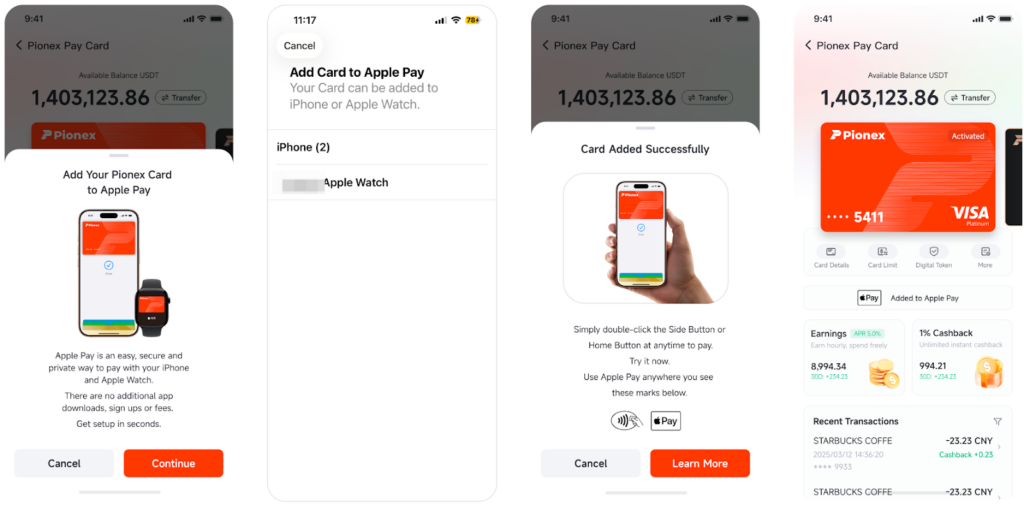
Just follow a few simple steps to add your Pionex Card to Apple Wallet.
- Open the Pionex App: Ensure your app is updated to the 3.1.9 version or later.
- Navigate to the Pionex Card homepage.
- Tap “Add to Apple Wallet”: You will see a prominent “Add to Apple Wallet” button; tap it.
- Follow the on-screen instructions: The system will automatically redirect to Apple’s official addition interface. Simply confirm your card details and agree to the relevant terms to complete the process.
The entire process is seamless within the app, requiring no manual entry of card numbers or other tedious information.
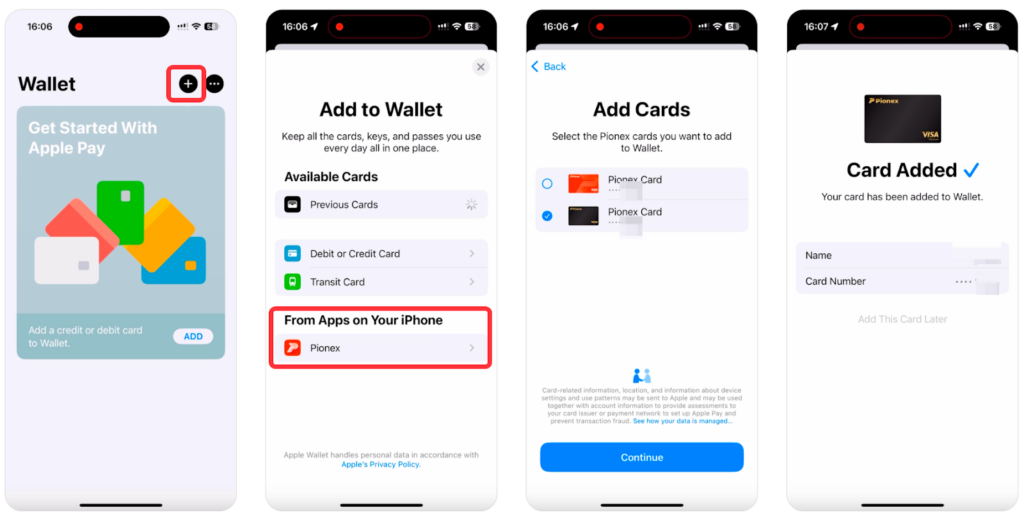
Alternatively, you can add your card using Apple Wallet.
Method 1: Open Apple Wallet — Tap the Add button (+) in the top right corner — Tap “From Apps on Your iPhone” and select Pionex — Select your card and follow the onscreen instructions to add it.
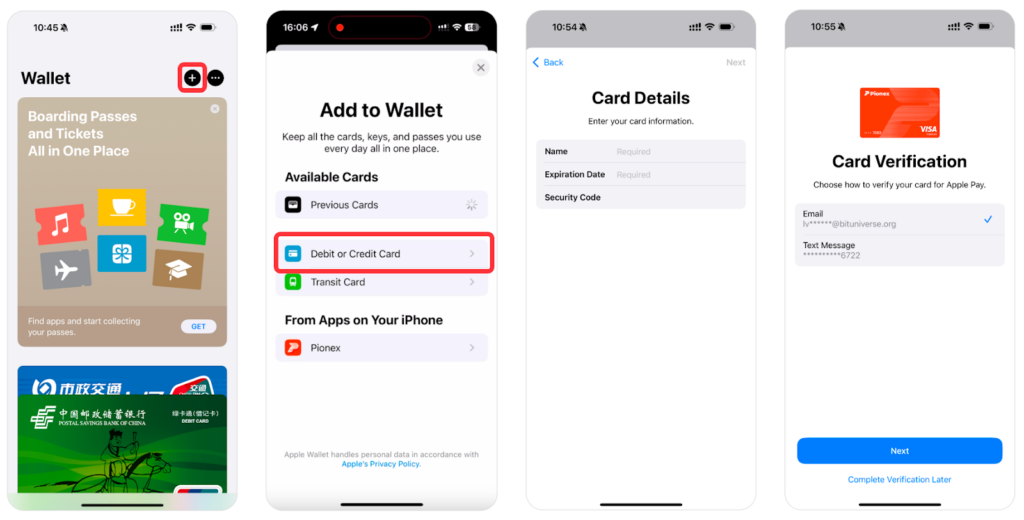
Method 2: Open Apple Wallet — Tap the Add button (+) in the top right corner — Tap “Debit or Credit Card” — Enter your card details — Follow the onscreen instructions to verify and add your card.
II. How to Use Apple Pay Easily?
- Paying at physical locations like stores and restaurants:
- For iPhone with Face ID:
- Double-click the side button.
- Glance at your screen to authenticate with Face ID, or enter your passcode.
- Hold the top of your iPhone near the contactless reader until a checkmark and “Done” appear on the screen.
- For iPhone with Touch ID:
- Rest your finger on the Touch ID sensor.
- Hold the top of your iPhone near the contactless reader until a checkmark and “Done” appear on the screen.
- For Apple Watch:
- Double-click the side button.
- Hold the display of your Apple Watch near the reader. You’ll feel a gentle tap.
- For iPhone with Face ID:
- Paying online within Apps or in Safari:
- At checkout, select Apple Pay as your payment method.
- Review your billing and shipping information.
- Authorize the payment using Face ID, Touch ID, or your device passcode.
III. Frequently Asked Questions (FAQ)
Q1: Is using Apple Pay safe?
A: Extremely safe. Apple Pay uses multiple security layers. Your actual card number is never shared with merchants, and each transaction requires authorization via your biometrics, making it one of the most secure payment methods available.
Q2: Is there a fee for adding or using Apple Pay?
A: Neither Pionex Card nor Apple charges you any additional fees.
Q3: Can I add multiple Pionex Cards to one device?
A: Yes. If you have multiple Pionex Cards, you can add them all to your device.
Q4: How can I view the transaction history for payments made with Apple Pay?
A: You can view all transaction details in the card statement within your Pionex App.
Click below to learn more about Apple Pay:https://www.pionex.com/en/apple-pay/qa
