
Looking for PionexGPT? This guide shows how to create and debug Pine Script using Pionex.AI Coder. The safe workflow is to define every rule first, ask Coder for a TradingView strategy in Pine Script v6, compile it in TradingView, return any exact error message to Coder, and verify the logic before considering automation.
Coder does not prove that a strategy is profitable, and generated code should not be connected to live orders before testing. Treat it as a coding assistant, not as a substitute for strategy design, validation, or risk controls.
Contents
- 1 What Is Pionex.AI Coder?
- 2 Start With Rules, Not Code
- 3 Indicator or Strategy: Which Should You Request?
- 4 A Pine Script Prompt You Can Reuse
- 5 How to Create Pine Script With Coder
- 6 What to Check in Every Generated Strategy
- 7 How to Read a TradingView Backtest More Carefully
- 8 Common Coder Problems and the Best Follow-Up Prompt
- 9 Can Coder Place Trades?
- 10 How PionexGPT Relates to Pionex.AI Coder
- 11 A Safer Coder Workflow
- 12 Frequently Asked Questions
- 13 Sources
What Is Pionex.AI Coder?
Coder is the PRO coding agent inside Pionex.AI. Its current interface describes it as an AI coding assistant for writing, debugging, and explaining code.
For Pine Script work, that means you can use Coder to:
- turn written entry and exit rules into code;
- explain what each part of a script does;
- review a script against your original requirements;
- diagnose TradingView compiler errors;
- make a small correction without rewriting unrelated logic; and
- help convert an indicator idea into a testable strategy.
If you are new to the platform, read What Is Pionex.AI? Agents, Pricing and How to Get Started first.
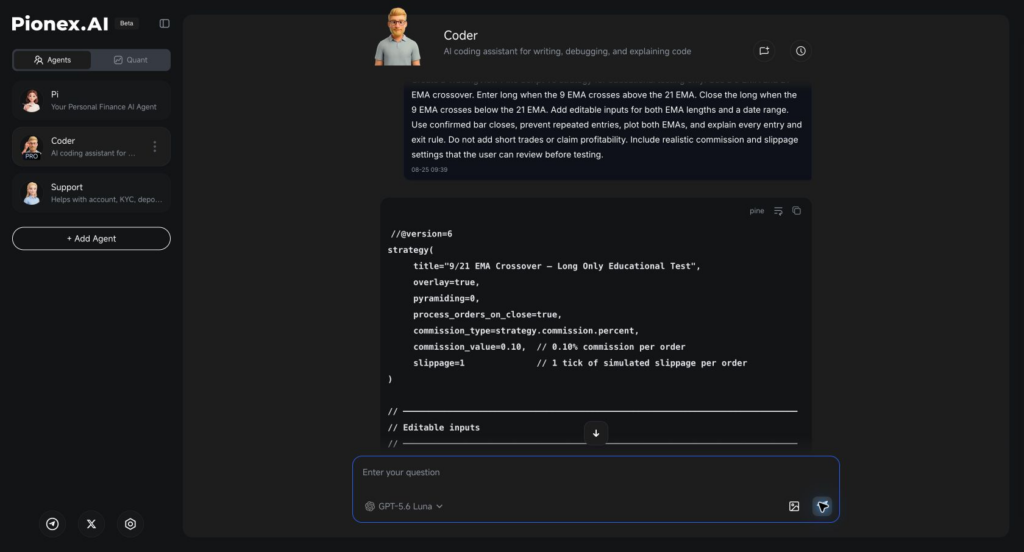
Coder generated Pine Script v6 from a detailed EMA crossover specification, including confirmed-bar signals, date inputs, commission, and slippage.
Start With Rules, Not Code
The quality of the script depends on the quality of the specification. “Create a profitable strategy” is not a usable coding brief. Coder needs rules that can be translated into true-or-false conditions.
Before asking for code, define:
| Decision | What you should specify |
|---|---|
| Script type | Indicator or strategy |
| Market and timeframe | The chart and timeframe you plan to test |
| Entry | The exact condition that opens a position |
| Exit | The exact condition that closes it |
| Direction | Long only, short only, or both |
| Position behavior | Whether repeated entries or pyramiding are allowed |
| Timing | Intrabar calculation or confirmed bar close |
| Risk rules | Stop-loss, take-profit, trailing stop, or no added exit |
| Test window | Start and end dates |
| Trading costs | Commission and slippage assumptions |
| Visuals | Lines, labels, or entry and exit markers |
Every vague phrase creates room for an assumption. “Buy when momentum is strong” is vague. “Enter long when the 9-period EMA crosses above the 21-period EMA on a confirmed bar close” is code-ready.
Indicator or Strategy: Which Should You Request?
Ask for an indicator when you only need chart calculations, plots, labels, or alert conditions.
Ask for a strategy when you need simulated orders and TradingView’s Strategy Tester. TradingView states that strategy scripts use the strategy() declaration and can simulate orders on historical and realtime bars. The results are hypothetical, not live executions.
For a backtestable Coder request, say “Create a Pine Script v6 strategy,” not simply “Create a Pine Script.” This small instruction prevents Coder from returning an indicator when you need simulated entries and exits.
A Pine Script Prompt You Can Reuse
Here is the exact structure used for our live Coder test:
Create a TradingView Pine Script v6 strategy for educational testing only. Use a 9 EMA and 21 EMA crossover. Enter long when the 9 EMA crosses above the 21 EMA. Close the long when the 9 EMA crosses below the 21 EMA. Add editable inputs for both EMA lengths and a date range. Use confirmed bar closes, prevent repeated entries, plot both EMAs, and explain every entry and exit rule. Do not add short trades or claim profitability. Include realistic commission and slippage settings that the user can review before testing.
This prompt works because it defines the script version, declaration type, entry, exit, direction, confirmation timing, repeated-entry behavior, inputs, visuals, costs, and explanation format.
Replace the EMA rules with your own conditions, but keep the structure.
How to Create Pine Script With Coder
1. Open Coder
Open Pionex.AI, select Agents, and choose Coder. Coder is marked PRO in the current interface.
2. Send a Complete Specification
Use the prompt structure above. If a detail matters, state it. Do not assume Coder knows whether you want long trades, short trades, bar-close confirmation, a stop-loss, or repeated entries.
3. Read the Explanation Before Copying the Code
Confirm that the answer describes the same strategy you requested. Check the entry, exit, direction, date range, position sizing assumptions, and cost settings.
If the explanation changes your idea, correct the specification before moving to TradingView.
4. Copy the Script Into TradingView
Open TradingView’s Pine Editor, paste the script, save it, and add it to the chart. A strategy should produce a Strategy Tester report after it compiles and places simulated orders.
TradingView’s documentation explains that a Pine strategy uses a broker emulator. It does not place orders through TradingView’s integrated brokers or paper-trading account by itself.
5. Return Exact Errors to Coder
If TradingView reports an error, copy the full error message and include the line number. Do not summarize it as “the code is broken.”
Use this debugging prompt:
Paste the full TradingView compiler error and line number above this instruction. Explain the cause in plain language, make the smallest necessary correction, and return the complete corrected Pine Script v6. Preserve every rule unrelated to the error.
The exact message gives Coder evidence. The instruction to preserve unrelated rules reduces accidental rewrites.
6. Ask Coder to Audit Its Own Output
Compilation only proves that TradingView accepts the syntax. It does not prove that the code matches your strategy.
After generation, ask:
Audit this script against my original specification. Check Pine Script v6 syntax,
strategy()usage, confirmed-bar signals, repeated-entry prevention, date-range behavior, long-only behavior, commission, slippage, and every exit. Return a pass/fix checklist. If something differs from the request, explain the smallest correction and provide the corrected complete script.
In our live test, Coder passed the main requirements but identified a date-range caveat: the script compared each bar’s opening timestamp with the selected end date. A bar could open before the end date and close after it, so the date-range exit would occur on the next confirmed bar. Coder then returned a clearer corrected version with a separate date-range exit marker.
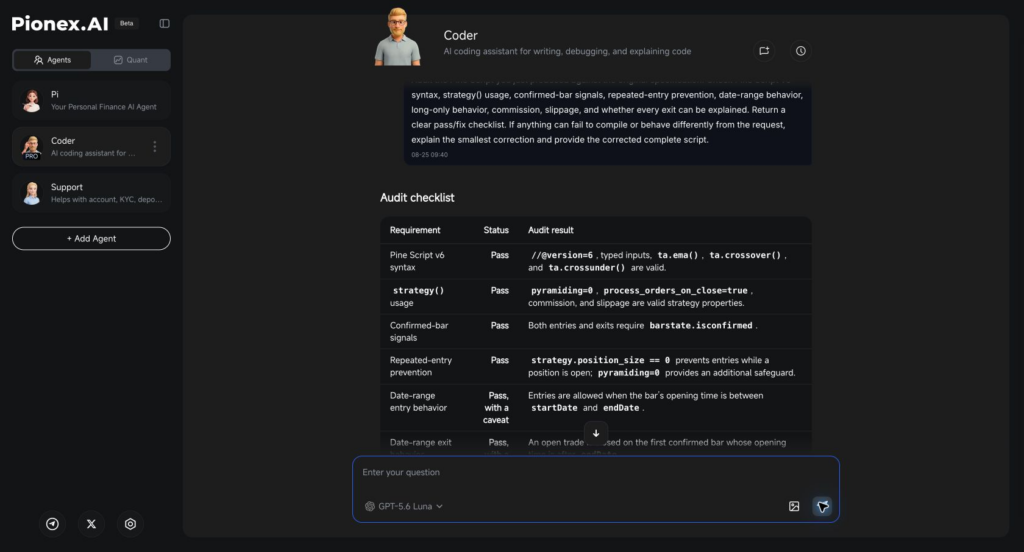
Coder checked the generated script requirement by requirement and flagged a date-range behavior that needed clarification.
What to Check in Every Generated Strategy
Pine Script Version
Look for //@version=6 at the top when you requested Pine Script v6.
Script Declaration
A backtestable script should use strategy(). An indicator() script can display signals but will not produce the same strategy report.
Entry and Exit Conditions
Translate the code back into plain language. If you cannot state exactly when it enters and exits, do not continue.
Confirmed-Bar Behavior
Realtime values can change before a candle closes. TradingView defines barstate.isconfirmed as true when the current bar is closed. Asking for confirmed-bar signals can reduce intrabar changes, but it does not eliminate every possible form of repainting.
Repeated Entries
If you want one open position at a time, check both the entry condition and the strategy’s pyramiding setting. In the live example, Coder used strategy.position_size == 0 and pyramiding=0.
Date Range
Check whether the script compares the selected date with a bar’s opening time, closing time, or another timestamp. The difference can change the final entry or exit around the boundary.
Commission and Slippage
TradingView warns that a backtest without trading costs can overstate historical performance. Pine strategies can model percentage or fixed commission and slippage in ticks.
The live Coder example used 0.10% commission per order and one tick of slippage only as editable code assumptions for the demonstration. Those values are not a statement of the fee or fill you will receive. Replace them with assumptions appropriate to the product, market, symbol, account tier, and execution conditions you are testing.
Position Size, Margin, and Leverage
Confirm the initial capital, order size, pyramiding, and margin settings. A strategy can appear attractive because its simulated capital or leverage is unrealistic.
Lookahead and Repainting
Ask whether the script uses future data, request.security() calls, intrabar values, or plots shifted into the past. TradingView defines repainting broadly as historical and realtime calculations or plots behaving differently. Not every form is deceptive, but the behavior must be understood before you trust a result.
How to Read a TradingView Backtest More Carefully
Do not judge a strategy from net profit alone. Review:
- maximum drawdown;
- number of trades;
- winning and losing trades;
- average trade;
- profit factor;
- exposure and position size;
- commission and slippage assumptions;
- performance across different symbols and market periods; and
- whether results depend on one unusually favorable period.
Backtesting is a simulation. TradingView notes that strategy reports are hypothetical and can be distorted by lookahead bias, selection bias, overfitting, unrealistic costs, and unrealistic order fills.
A useful next step is forward testing without live capital. If the strategy behaves differently from the historical report, investigate before automating anything.
Common Coder Problems and the Best Follow-Up Prompt
| Problem | Follow-up prompt |
|---|---|
| Coder returned an indicator | “Convert this to a Pine Script v6 strategy using strategy(). Preserve the plots and add simulated entry and exit orders.” |
| The script opens repeated positions | “Allow only one open position. Disable pyramiding and block entries while a position is open.” |
| Signals change before the candle closes | “Evaluate entries and exits only on confirmed bars. Explain what this changes and what repainting risks remain.” |
| The script compiles but trades at the wrong time | “Translate every entry and exit condition into plain English, compare it with my specification, and show every mismatch.” |
| Results look unrealistically strong | “Audit this strategy for lookahead bias, repainting, omitted commission, omitted slippage, unrealistic margin, and overfitting.” |
| A fix changed unrelated logic | “Restore the original entry and exit rules. Change only the line responsible for the exact error I pasted above.” |
| No trades appear | “Check the date range, symbol assumptions, timeframe, condition frequency, order commands, and whether the entry conditions can become true.” |
Can Coder Place Trades?
Coder writes, explains, and reviews code. Generating a Pine Script does not itself place an order on Pionex.
Pionex Signal Bot is the separate execution workflow that connects TradingView strategy alerts to Pionex through a webhook. Pionex’s current Signal Bot guide says you should build or import a functioning strategy, apply it in TradingView, configure the signal, create the bot, connect the webhook, and compare the TradingView Alert Log with the Pionex Signal Log.
See the Pionex Signal Bot and TradingView tutorial for the complete setup.
Never paste a Pionex password, API secret, private key, recovery phrase, or private webhook secret into an AI chat. Coder does not need those credentials to write or debug Pine Script.
How PionexGPT Relates to Pionex.AI Coder
PionexGPT is the established search name for Pionex’s AI-assisted strategy workflow. In the current Pionex.AI interface, Coder is the tool used to write, debug, and explain Pine Script.
Use Pionex.AI Coder for current code generation and debugging. The 2023 PionexGPT and TradingView guide documents the full backtesting, alert, and Signal Bot connection workflow.
A Safer Coder Workflow
- Write unambiguous strategy rules.
- Ask for a Pine Script v6 strategy.
- Read the explanation before copying the code.
- Compile it in TradingView.
- Return exact errors to Coder.
- Ask for a requirement-by-requirement audit.
- Check repainting, lookahead, costs, sizing, margin, and date behavior.
- Backtest across more than one period.
- Forward test without live capital.
- Add Signal Bot only after the strategy and alert flow are understood.
Frequently Asked Questions
Can Pionex.AI Coder write Pine Script v6?
Yes. In our live test, Coder generated a Pine Script v6 strategy when the version was stated explicitly in the prompt. You should still compile the script in TradingView and check that every rule matches your specification.
Can Coder fix TradingView Pine Script errors?
Coder can explain and correct many syntax and logic problems. Give it the full TradingView error message, line number, complete script, and an instruction to preserve unrelated rules.
Does code from Coder work automatically in TradingView?
No. Copy the code into TradingView’s Pine Editor, compile it, add it to the chart, and inspect the result. Generated code can contain errors or assumptions that differ from your request.
Should I request an indicator or a strategy?
Request an indicator for plots, calculations, or alert conditions. Request a strategy when you need simulated orders and a TradingView Strategy Tester report.
Can Coder prove that a strategy is profitable?
No. Coder can generate and review code, but it cannot prove future profitability. Historical and forward-test results depend on the data, assumptions, execution conditions, and market period.
How do I stop repeated entries in Pine Script?
Tell Coder to disable pyramiding and allow a new entry only when no position is open. Then verify both behaviors in the generated code and TradingView test results.
Does confirmed-bar logic prevent all repainting?
No. Confirmed-bar logic can prevent a signal from acting on an unfinished candle, but other features such as higher-timeframe requests, future leaks, dataset changes, or shifted plots can still cause historical and realtime behavior to differ.
Can Coder connect the strategy to Pionex Signal Bot?
Coder can help prepare or review strategy code, but Signal Bot setup is a separate process. You must create the Pionex signal, configure a TradingView alert and webhook, test delivery, and apply risk controls.
What information should I never paste into Coder?
Do not paste passwords, API secrets, private keys, recovery phrases, private webhook URLs, or other credentials. Pine Script generation and debugging do not require them.
Sources
- TradingView Pine Script strategies
- TradingView repainting documentation
- TradingView Pine Script v6 reference
- Pionex Signal Bot guide
- Historical PionexGPT and TradingView workflow
Risk disclaimer: This article is for educational purposes only and does not provide investment, financial, legal, or tax advice. Generated code and backtests can contain errors or unrealistic assumptions. Cryptocurrency and leveraged futures involve substantial risk, including the possible loss of all invested funds. Test carefully and use only risk you can afford to take.
