
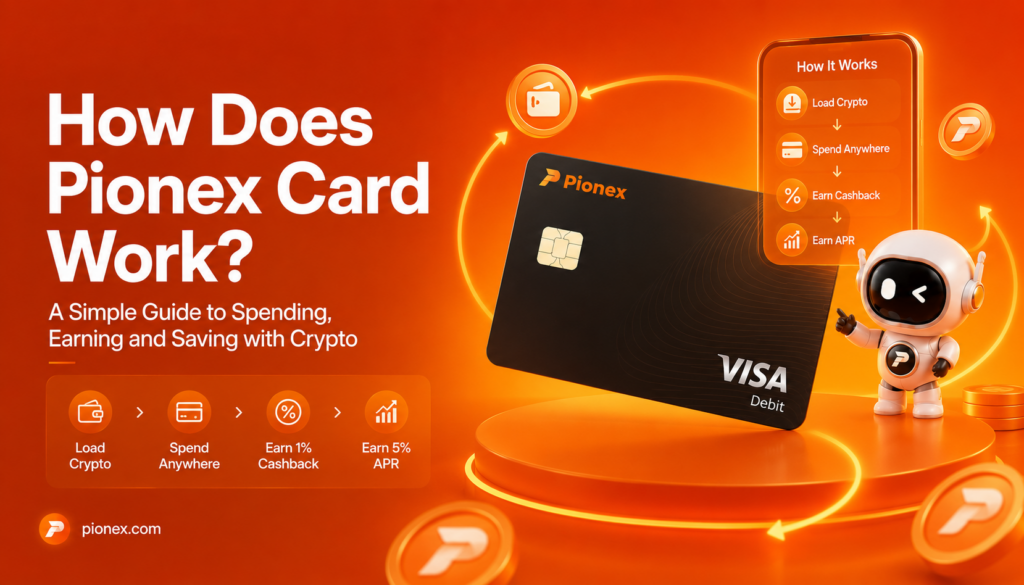
Pionex Card is a USDT-funded crypto debit card for online and in-store payments. Use the virtual Visa or Mastercard online or through supported wallets. Physical cards are available only to eligible accounts through a phased rollout; the application option appears in the app or on the website. This guide explains how to apply, fund the Card account, spend, manage limits, and protect the card.
Contents
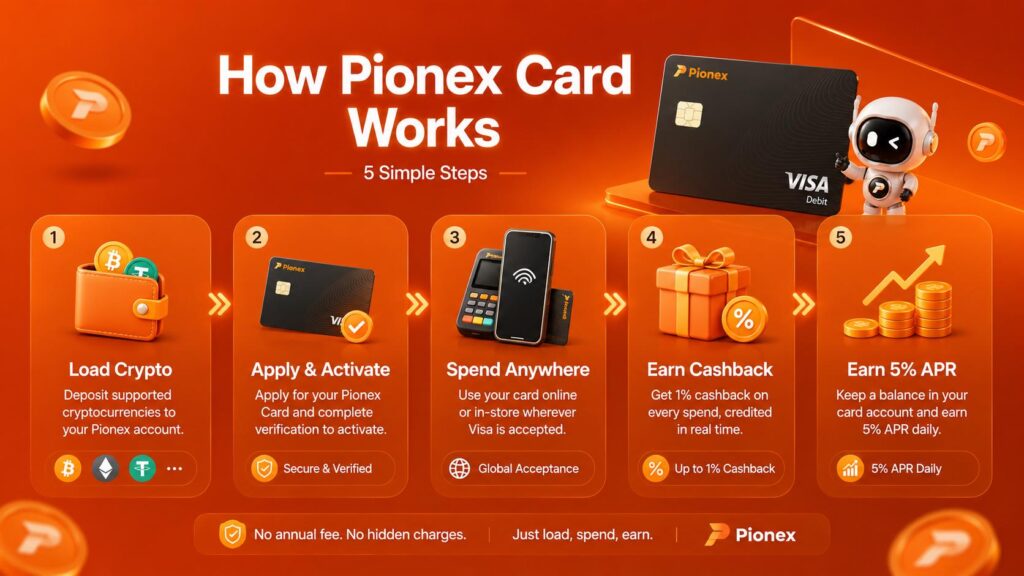
- 1 How Pionex Card Works Step by Step
- 2 Step 1: Check If You Are Eligible
- 3 Step 2: Apply for the Card
- 4 Step 3: Fund Your Card Account
- 5 Setting Up Auto Transfer (So You Never Run Low)
- 6 Step 4: Pay Online
- 7 Step 5: Pay In-Store
- 8 Managing Your Spending Limits
- 9 How to Freeze Your Card
- 10 Reading Your Monthly Statement
- 11 Why a Transfer Might Fail
- 12 If a Pionex Card Payment Fails
- 13 Frequently Asked Questions
- 14 To Recap,
How Pionex Card Works Step by Step
The Pionex Card review for current fees, rewards and eligibility tells you what the card offers. This guide tells you how to actually use it.
From applying and funding, to paying at a merchant, freezing the card when something looks wrong, and reading your monthly statement, this covers every operational step drawn directly from Pionex’s official support documentation. If you are already approved and just need a specific step, use the section headers to jump straight there.
For the full feature overview including fees, cashback rates, and how Pionex Card compares to alternatives, start here: Pionex Card review for current fees, rewards and eligibility.
Step 1: Check If You Are Eligible
Before applying, two conditions must be met:
- Level 2 KYC completed. This is the full identity verification on your Pionex account. If you have been trading on Pionex, you have likely already done this. Check under your account settings if you are unsure.
- Meet the balance requirement shown on your application page. This requirement varies by region: most users need at least 10 USDT, while a small number of regions may require 100 USDT. It is an eligibility check only; the amount is not deducted or held, and your funds stay in your main account.
If either condition is not met, the application screen will tell you why you cannot proceed. For restrictions related to your country or account status, contact Pionex customer support directly.
Step 2: Apply for the Card
On the Pionex app:
- Open the Pionex app and tap Wallet on the home screen
- Switch to the Card section
- The system checks your eligibility automatically and shows which card types you can apply for
- Tap Apply Now
- Enter your cardholder details following the on-screen prompts
- Tap Next Step, review your information, then tap Confirm Submission
Standard applications usually receive a result within one hour. If the status remains Under Review after one hour, contact Pionex Support. See the official application guide.
On the web:
- Go to pionex.com, click Card in the top navigation, then select Apply Personal Card
- The system displays the card options you are eligible for, click Apply Now
- Enter your cardholder details, confirm everything is correct, then click Confirm
Your KYC-verified country or region determines which card network is offered. Pionex Visa has a 1% transaction fee, including USD purchases, and up to 1% cashback on eligible spending. Cashback is separate from the fee and is not guaranteed to offset every charge. See the official Visa Card Fees Schedule.
New Mastercard applications use the DogPay programme, which currently lists a 3.5% transaction fee and 0.1% cashback on eligible spending. Earlier Mastercard cards continue under their existing programme. Check the terms for your card rather than applying one Mastercard rate to every account. See the official DogPay Card guide and fees.
The application guide allows multiple cards where supported, but they must all use the same network brand, Visa or Mastercard, as determined by your KYC-verified region. DogPay separately limits users to one DogPay Card.
Step 3: Fund Your Card Account
This is the step most new users miss. Your Pionex Card account is completely separate from your main Pionex trading account. Funds in your trading account, bots, or earn products are not automatically available for card spending. You transfer what you need to the card account before you spend.
Think of it as two wallets: your trading wallet and your spending wallet. Moving money between them is straightforward, but it is a step you need to take.
Transferring funds on the app:
- Open the Pionex app, go to Wallet, then the Card page
- Tap Deposit, then select Transfer
- Enter the amount you want to move, or tap All to transfer your full available balance
- Tap Transfer to confirm
Security verification may be requested because transferring to the card account is treated as a withdrawal from your primary account. This is by design. It protects your trading funds from being accidentally spent.
You can also fund the card directly via on-chain deposit by tapping Deposit and selecting the on-chain option instead of Transfer.
Transferring funds on the web:
- Go to pionex.com, click Card then Personal Card
- Click Transfer
- Enter the amount or click All, then click OK
One practical note: For Visa spending, the official fee guide recommends keeping a 3% to 5% balance buffer. Its 99 USD example includes both an extra 1% reserve and the 1% transaction fee: 99 × 1.01 × 1.01 = 101.1899 USDT. A 100 USDT balance can therefore be insufficient. Check the Visa fee and balance-reserve rules; other card programmes have different charges.
Setting Up Auto Transfer (So You Never Run Low)
Auto Transfer tops up your card account automatically when the balance drops below a threshold you set. It removes the need to manually monitor and refill the card account.
Setting it up on the app:
- Go to Wallet then Card
- Tap More, then select Auto Transfer
- Set your trigger balance (the level at which auto top-up kicks in) and the transfer amount
- Set your deduction order, you can prioritise different funding sources, including your Primary Account and any active Arbitrage products
- Tap Enable Auto Transfer and complete security authentication
Setting it up on the web:
- Go to Card then Personal Card
- Click Auto Transfer
- Configure the rule settings and deduction order
- Click Enable Auto Transfer
Three things to know about Auto Transfer:
- If the funding source does not have enough balance when the trigger fires, the transfer fails and Auto Transfer disables itself automatically. You will receive a notification.
- Risk control measures on your account can also cause Auto Transfer to fail and disable.
- If either happens, re-enable it manually after resolving the underlying issue.
To turn it off, go to the Auto Transfer settings page and click Disable Auto Transfer.
Step 4: Pay Online
For online purchases, you need your card number, expiration date, and CVV. These are not visible by default. You reveal them through a verified process each time.
On the app:
- Go to Wallet then Card
- Tap Card Details, then tap Card Details again
- Complete security authentication (biometric, PIN, or SMS code depending on your settings)
- Your card number, expiration date, and CVV are now visible
On the web:
- Go to Card then Personal Card
- Click Card Details, then Card Details again
- Complete verification to reveal your card credentials
Enter these at checkout the same way you would with any Visa card. The merchant sees a standard Visa transaction.
Payment security verification: When you pay online, Pionex may trigger a secondary verification step called Pionex Verify. This is a security layer on top of the standard checkout. Depending on your settings, it arrives as either an SMS code to your registered number or as an in-app notification.
If you are not receiving SMS codes during payment, switch your verification method to In-App Authorization. Go to your card settings and update the payment security verification method. Future verifications will then come as notifications in the app rather than by SMS.
Step 5: Pay In-Store
Physical cards are being rolled out through selected promotions and regional invitations. If your account is eligible, the application option appears in the app or on the website; if it is absent, physical cards are not yet available to your account. DogPay is virtual-only. Virtual cards cannot withdraw cash from ATMs. For in-store payments, use a digital wallet supported by your card and region. See the official physical-card availability guidance.
Mobile wallets covered by the setup guide: Support varies by card network, region and wallet. Check the instructions for your specific card before linking it.
- Apple Pay
- Google Pay
- Alipay
- Alipay HK
- WeChat Pay
- Line Pay
- PayPal
Setup instructions for each wallet are in the Digital Wallet Setup Instructions guide in the Pionex Help Center.
Once linked, tap your phone at any contactless terminal. The payment clears through the Pionex Visa Card. The merchant sees a standard contactless Visa transaction.
For merchants that support Alipay or WeChat Pay’s scan-to-pay feature, you can also use that directly through the linked Pionex Card.
Checking if a card is successfully linked to a merchant: In the Pionex app, go to More, then Pionex Card, then Digital Token. This shows which wallets and merchants have your card bound.
Managing Your Spending Limits
Default limits on the Pionex Visa Card:
| Frequency | Limit |
| Per transaction | 10,000 USDT |
| Daily | 10,000 USDT |
| Monthly | 50,000 USDT |
| ATM daily (physical card) | 3,000 USDT |
| ATM monthly (physical card) | 7,000 USDT |
You can adjust your limits within these defaults from the app or web.
On the app:
- Go to Wallet then Card
- Tap Card Limit
- Adjust as needed and tap Submit
On the web:
- Go to Card then Personal Card
- Tap More, then select Card Limit
- Adjust and click Submit
Eligible Visa users can request a temporary limit increase in the app under Card, then Limit Settings. Check the official Visa limit rules for the balance requirement, approved limits, duration and cooldown. If you are not eligible or need a higher limit, contact Pionex Support. ATM withdrawal limits currently cannot be adjusted.
How to Freeze Your Card
If you suspect your card details have been compromised, freeze the card immediately. It takes seconds.
On the app:
- Go to Wallet then Card
- Tap More, then select Freeze
- Select a freeze reason and tap Confirm
On the web:
- Go to Card then Personal Card
- Click Freeze
- Select a freeze reason and click OK
To unfreeze, follow the same path and select Unfreeze.
Important: Freezing the card stops new payments from being authorised, but it does not cancel subscription charges that merchants have already set up. If a merchant has your card linked for recurring billing and continues to attempt charges after you freeze the card, each failed attempt may generate a 0.5 USDT failed payment fee (after the first one per month, which is free). To stop this properly, contact the merchant directly and cancel the subscription or remove the card from their system. Re-applying for a new Pionex Card does not resolve this, the merchant’s system will keep attempting the old card number.
Reading Your Monthly Statement
All transaction details, including refunds and cashback credits, appear in your monthly statement.
On the app:
Go to Wallet, then Card, then your card type (Visa), then More, then Monthly Statement, select the month, and tap Confirm.
Note: Pionex Card transaction details are not included in the standard CSV transaction history export from your main account. If you need a record of card spending for accounting or tax purposes, use the monthly statement download from within the card section.
Why a Transfer Might Fail
If a fund transfer from your main account to your card account fails, the most common causes are:
- Funds are occupied. Money tied up in open trading bot orders, Earn products, or active positions is not available to transfer. Close or pause those first.
- Fiat deposit restrictions. Some fiat deposits carry a T+N holding period before they can be moved. The transfer will work once the restriction period passes.
- Account safety or compliance holds. If your account has any active risk control or compliance review, transfers may be blocked until it is resolved.
If a Pionex Card Payment Fails
This setup guide does not cover payment declines in depth. First, confirm that the card account has enough available USDT, the card is not frozen and the transaction is within your current limits.
For the complete Pionex-specific diagnostic sequence, fees and app checks, read Pionex Card Not Working? Why It Declines and How to Fix It.
Frequently Asked Questions
Do I need to transfer funds every time I want to spend?
Not if you set up Auto Transfer. Once configured, the card account tops itself up automatically when the balance drops below your set threshold.
Can my card funds be used for trading bots while they are in the card account?
No. The card account is a separate wallet. Funds there are only available for card spending, not for trading bots or earn products. If you want to run a bot with those funds, transfer them back to your main account first.
What happens if my payment fails at checkout but the amount leaves my account?
This is a pre-authorisation hold. The merchant initiated a charge but the transaction did not complete. For Visa, the official guide says the refund can take up to 30 business days. If it has not arrived after that period, obtain the ARN (Acquirer Reference Number) from the merchant and contact Pionex Support. Check your transaction status before retrying a payment.
How do I check all my card transactions?
In the app, go to Wallet, then Card, then your card type, then Recent Transactions. For a complete monthly record, download the monthly statement from the same section.
Can I use the card for subscription services?
Yes, for most subscription services that accept Visa. To bind your card to a subscription, enter the card details at the service’s payment page. The card will appear as a standard Visa. Note that some digital platforms, including certain app stores and streaming services, have their own policies on crypto-based payment methods and may decline.
What is the difference between the card account and the main account?
Your main Pionex account holds funds for trading, bots, and earn products. The card account is a separate spending wallet. Funds must be explicitly transferred between them. The Visa Card fee schedule currently specifies 5% APY on the USDT Visa Card account balance, credited hourly, with funds remaining spendable. DogPay separately describes 5% annualized yield, credited hourly to the Primary Account. Rates and terms can change; check the official guide and your account.
To Recap,
Pionex Card uses a separate USDT-funded card account for payments. Fees, cashback, balance earnings and physical-card access depend on the card programme and your account eligibility. Check the Visa or DogPay terms linked above before funding and spending.
The operational flow is: apply once, fund the card account before you spend, set up Auto Transfer so it stays topped up, add the card to Apple Pay or Google Pay for in-store use, and check the monthly statement for a record of everything.
Every step above is drawn from Pionex’s official support documentation. If any process changes, the Pionex Help Center has the current version.
Need setup help? Visit the Pionex Card Support Centre. For country availability, see Where Does Pionex Card Work.
Disclaimer: This article is for informational purposes only. Product features, limits, and processes may change. Always verify current steps directly in the Pionex app or Help Center before acting.
