> For the complete documentation index, see [llms.txt](https://www.pionex.com/docs/llms.txt). Markdown versions of documentation pages are available by appending `.md` to page URLs; this page is available as [Markdown](https://www.pionex.com/docs/api-docs/partner-api/partner-guide.md).

# Start Here: UID Verification

Partners can verify whether a Pionex UID belongs to a user who registered through their invitation link. Choose one of two integration options based on how you want users to complete verification.

| Option                                                                     | Best for                                                                                  | How it works                                                                                                                                    |
| -------------------------------------------------------------------------- | ----------------------------------------------------------------------------------------- | ----------------------------------------------------------------------------------------------------------------------------------------------- |
| [Pionex-managed Community Bot](#option-1-pionex-managed-community-bot)     | Partners who want a ready-to-use solution without building their own verification system. | Pionex handles the verification flow through Telegram or Discord. Verified users receive a Telegram group invitation or a Discord role.         |
| [Direct Partner API integration](#option-2-direct-partner-api-integration) | Partners who already have a website, application, membership system, or other user flow.  | Your system submits the UID to the Partner API and handles the verification result in your own product. No Telegram or Discord bot is required. |

Both options use the same partner invitation relationship and qualification rules. If you already know which API endpoint you need, go directly to the [Partner API Reference](https://www.pionex.com/docs/api-docs/partner-api/general-info) for request parameters and response schemas.

## Verification Rules

A verification succeeds only when all configured conditions are met:

1. The UID contains exactly eight digits.
2. The user registered through the partner's invitation link.
3. If **Min Balance** is configured, the user's total account assets in USDT meet or exceed that value.
4. The UID has not already been verified by the same configuration. A UID may still be verified with a different configuration.

## Option 1: Pionex-Managed Community Bot

Choose this option when you do not want to build or maintain your own UID verification interface. Pionex provides the user flow through Telegram or Discord.

### Request Community Bot access

Community Bot is available to approved partners only. Contact Pionex customer support or your BD representative to request access.

After access is enabled, **Community Bot** appears in the Partner Web navigation.

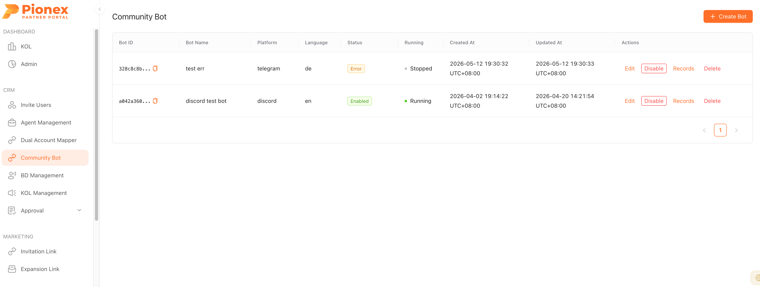
### Manage Bots

Partners can create and manage up to 10 bots in **Partner Web > Community Bot**.

<div align="left"><figure><img src="https://4194290415-files.gitbook.io/~/files/v0/b/gitbook-x-prod.appspot.com/o/spaces%2FFR2ceef8Tg60c2lMiqG0%2Fuploads%2Fgit-blob-1b45d86850ff2da55a52629f644810a3c3e73584%2Fbot-management.png?alt=media" alt="Community Bot management page"><figcaption><p>Manage Partner Bots in Partner Web.</p></figcaption></figure></div>

| Action           | Description                                                                                           |
| ---------------- | ----------------------------------------------------------------------------------------------------- |
| Enable / Disable | Start or pause the bot.                                                                               |
| Edit             | Update the configuration. Platform and bot token cannot be changed. The bot restarts after an update. |
| Records          | View verification records for the bot.                                                                |
| Delete           | Delete the bot.                                                                                       |

Bot statuses:

| Status   | Description                                                         |
| -------- | ------------------------------------------------------------------- |
| Running  | The bot is operating normally.                                      |
| Disabled | The bot was manually paused.                                        |
| Error    | The bot stopped unexpectedly, usually because its token is invalid. |

### Create a Telegram or Discord Bot

Go to **Bot Management > Create Bot**.

<div align="left"><figure><img src="https://4194290415-files.gitbook.io/~/files/v0/b/gitbook-x-prod.appspot.com/o/spaces%2FFR2ceef8Tg60c2lMiqG0%2Fuploads%2Fgit-blob-47ae0f33188947fdd7fd56ceded0a542a6be7cd4%2Fcreate-bot.png?alt=media" alt="Create Partner Bot form" width="500"><figcaption><p>Create a Telegram or Discord Partner Bot.</p></figcaption></figure></div>

| Field              | Required      | Description                                                                                    |
| ------------------ | ------------- | ---------------------------------------------------------------------------------------------- |
| Bot Name           | Yes           | Display name used to identify the bot in Partner Web.                                          |
| Platform           | Yes           | Select `Telegram` or `Discord`.                                                                |
| Bot Token          | Yes           | Token for the Telegram or Discord bot.                                                         |
| Group Chat ID      | Telegram only | Telegram group ID used to generate an invitation link after successful verification.           |
| Verified Role Name | Discord only  | Discord role granted after successful verification.                                            |
| Signup URL         | No            | Pionex registration link containing your invitation code. It is shown when verification fails. |
| Language           | No            | Default language: `en`, `zh`, `es`, or `de`.                                                   |
| Min Balance        | No            | Minimum total account balance in USDT. Set it to `0` to skip the balance check.                |

#### Telegram requirements

* Add the bot as an administrator of the target group.
* Grant the bot permission to invite users.

#### Discord requirements

* Enable **MESSAGE CONTENT INTENT** and **SERVER MEMBERS INTENT**.
* Grant the bot **Manage Roles** permission.
* Place the bot's role above the role it will grant.
* After creating the bot, run `/verify_channel #channel-name` in Discord to publish the verification button.

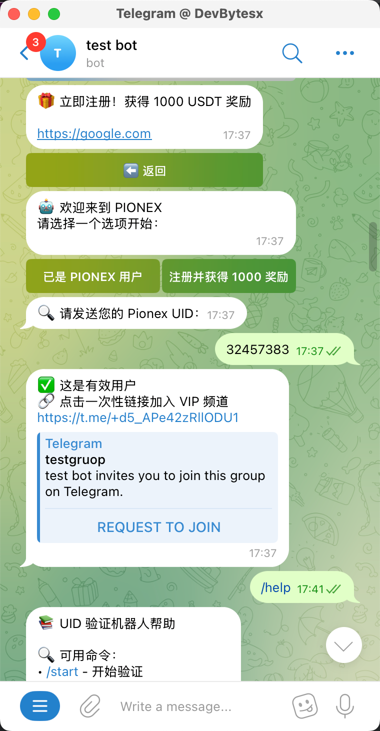
### Telegram User Flow

1. The user opens a private chat with the bot and sends `/start`.
2. The user selects **ALREADY PIONEX USER** and submits a UID.
3. The bot verifies the UID.
4. After successful verification, the user receives a group invitation link that is valid for one hour and can be used once.

If verification fails, the bot displays the reason and the configured signup link. Users can send `/language` to change the bot language.

<div align="left"><figure><img src="https://4194290415-files.gitbook.io/~/files/v0/b/gitbook-x-prod.appspot.com/o/spaces%2FFR2ceef8Tg60c2lMiqG0%2Fuploads%2Fgit-blob-56b41fef350f2fe173dc677c3ab56630e1636c72%2Ftelegram-verification.png?alt=media" alt="Telegram Partner Bot verification flow" width="320"><figcaption><p>A successful Telegram verification returns a one-time group invitation link.</p></figcaption></figure></div>

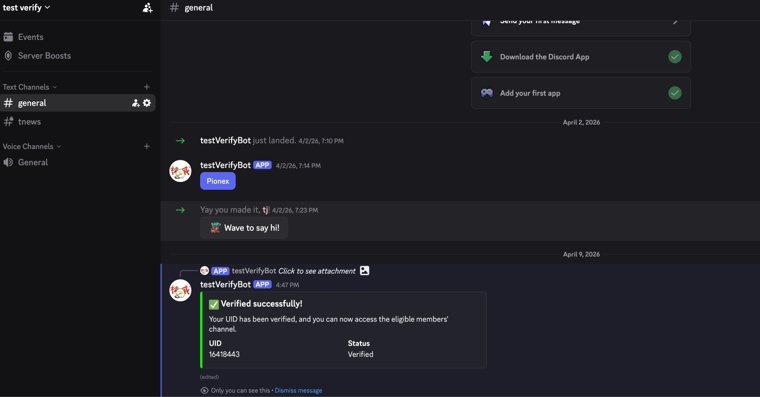
### Discord User Flow

1. The user clicks the **Pionex** button in the configured verification channel.
2. The user enters a UID and confirms it within five minutes.
3. The bot verifies the UID and automatically grants the configured role.

Verification messages are visible only to the user. Failed verification displays an error without granting the role.

<div align="left"><figure><img src="https://4194290415-files.gitbook.io/~/files/v0/b/gitbook-x-prod.appspot.com/o/spaces%2FFR2ceef8Tg60c2lMiqG0%2Fuploads%2Fgit-blob-9d136c781b26e1457646795ab2ada8e80b6f7a3d%2Fdiscord-verification.png?alt=media" alt="Discord Partner Bot verification flow"><figcaption><p>A successful Discord verification grants the configured role.</p></figcaption></figure></div>

Discord administrator commands:

| Command                     | Description                                   |
| --------------------------- | --------------------------------------------- |
| `/verify_channel #channel`  | Publish the verification button in a channel. |
| `/set_grant_role role-name` | Change the role granted after verification.   |
| `/admin_stats`              | View verification statistics.                 |
| `/admin_config`             | View the bot configuration.                   |
| `/help`                     | View available commands.                      |
| `/status`                   | View verification status.                     |

## Option 2: Direct Partner API Integration

Choose this option when you already have a website, application, membership system, or other user flow. Your backend calls the Partner API directly and decides what to do with the verification result.

You do not need to create or operate a Telegram or Discord bot. Users remain in your own product throughout the verification flow.

The direct integration flow is:

`Your product > Submit UID to Partner API > Receive qualification result > Continue your own user flow`

### Request Partner API access

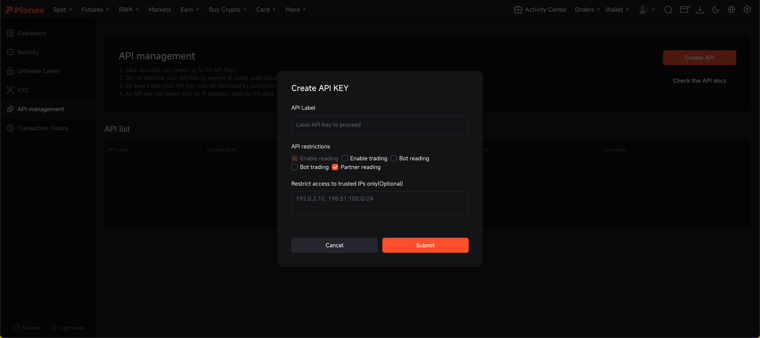
Direct API integrations require a Pionex API key with the **Partner reading** permission. Follow [Create an API Key](/docs/api-docs/references/api-key-guide.md), enable **Partner reading** and **Enable reading**, and wait for approval.

If **Partner reading** is not available, contact Pionex customer support or your BD representative.

<div align="left"><figure><img src="https://4194290415-files.gitbook.io/~/files/v0/b/gitbook-x-prod.appspot.com/o/spaces%2FFR2ceef8Tg60c2lMiqG0%2Fuploads%2Fgit-blob-6d3a2215dde096a1cdcdf1d9f02ef9bd4f09975a%2Fcreate-api-key.png?alt=media" alt="Create an API key with Partner reading permission"><figcaption><p>Enable Partner reading when creating the API key.</p></figcaption></figure></div>

### Create the Open API configuration

Before calling the qualification endpoint, create an Open API configuration in Partner Web:

1. Go to **Bot Management > Create Bot**.
2. Set **Platform** to `Open API`.
3. Enter a **Bot Name**.
4. Optionally configure **Min Balance**. Set it to `0` to skip the balance check.
5. Create the bot and copy its `bot_id`.

Partner Web calls this configuration an **Open API Bot**, but it is not a chat bot. It does not require a bot token, does not start a Telegram or Discord process, and does not provide a user interface. It stores the verification settings and provides the `bot_id` required by the Partner API.

<div align="left"><figure><img src="https://4194290415-files.gitbook.io/~/files/v0/b/gitbook-x-prod.appspot.com/o/spaces%2FFR2ceef8Tg60c2lMiqG0%2Fuploads%2Fgit-blob-79d04e028e400ecb0b958050e823ab39347a0a73%2Fget_bot_id.png?alt=media" alt="Find the Partner Bot ID in Partner Web" width="500"><figcaption><p>Copy the bot ID from Partner Web for API requests.</p></figcaption></figure></div>

### Call the Partner API

From your backend, call `GET /api/v1/partner/kol/checkQualification` with the user's UID and the `bot_id` created above. The endpoint checks the invitation relationship and the qualification conditions stored in the Open API configuration.

See [Partner API Reference](https://www.pionex.com/docs/api-docs/partner-api/general-info) for authentication, parameters, and response fields.

Use `GET /api/v1/partner/kol/inviteTradeStat` when you also need the invited user's trading volume statistics.

## Troubleshooting

| Applies to    | Problem                                                  | Resolution                                                                                                               |
| ------------- | -------------------------------------------------------- | ------------------------------------------------------------------------------------------------------------------------ |
| Community Bot | Bot status is `Error`                                    | The token is usually invalid. Delete the bot and create it again with a new token.                                       |
| Community Bot | Discord role is not granted                              | Check **Manage Roles** permission and ensure the bot's role is above the role being granted.                             |
| Community Bot | Telegram verification succeeds but no invitation arrives | Confirm the Group Chat ID and make sure the bot is a group administrator with permission to invite users.                |
| Both options  | UID verification fails                                   | Confirm that the UID has eight digits, the user registered through the partner link, and the balance requirement is met. |
| Community Bot | Bot token must be changed                                | Tokens cannot be edited. Delete the bot and create it again.                                                             |
| Both options  | A user needs to verify again                             | A UID can be verified only once per configuration, but it can be verified with a different configuration.                |